> ## Documentation Index
> Fetch the complete documentation index at: https://docs.fjall.io/llms.txt
> Use this file to discover all available pages before exploring further.
# Deploy Organisation
> Create and deploy a Fjall-managed AWS Organisation with multi-account structure, governance, and disaster recovery.
An organisation is the top of the Fjall hierarchy. Deploying one provisions a multi-account AWS Organizations structure, organisational units, and the governance baseline your applications build on.
## Prerequisites
* [Install the Fjall CLI](/deployment/cli-installation) (requires Node 22+)
* [Connect your AWS account](/deployment/configure-deployment-user) so the CLI can assume a deployment role
## 1. Create the organisation
Run the following at the root of your project:
```bash theme={null}
fjall create organisation
```
## 2. Answer the prompts
The interactive flow asks for, in order:
| Prompt | Detail |
| ---------------------------- | ------------------------------------------------------------------- |
| **Name your organisation** | The organisation name |
| **Email for account setup** | Email tied to AWS account creation (e.g. `engineering@example.com`) |
| **Primary AWS region** | Default region for Identity Centre and IPAM pools |
| **Secondary AWS regions** | Optional additional regions (multi-select) |
| **Enable disaster recovery** | Provision a separate DR region for production |
| **Disaster recovery region** | Shown only when DR is enabled |
| **Governance profile** | Essentials, Monitored, Regulated, or Enforced |
Use a monitored inbox for the account email. With centralised root access enabled (the default), member accounts hold no root credentials, and AWS root password recovery — the "Allow password recovery" privileged task — delivers its reset link to this address.
After the review-and-confirm step, the CLI generates the organisation structure and runs `npm install`.
Creating an organisation does not deploy anything to AWS or open a browser. OIDC trust is established separately by `fjall connect`. The flow is create, then connect, then deploy.
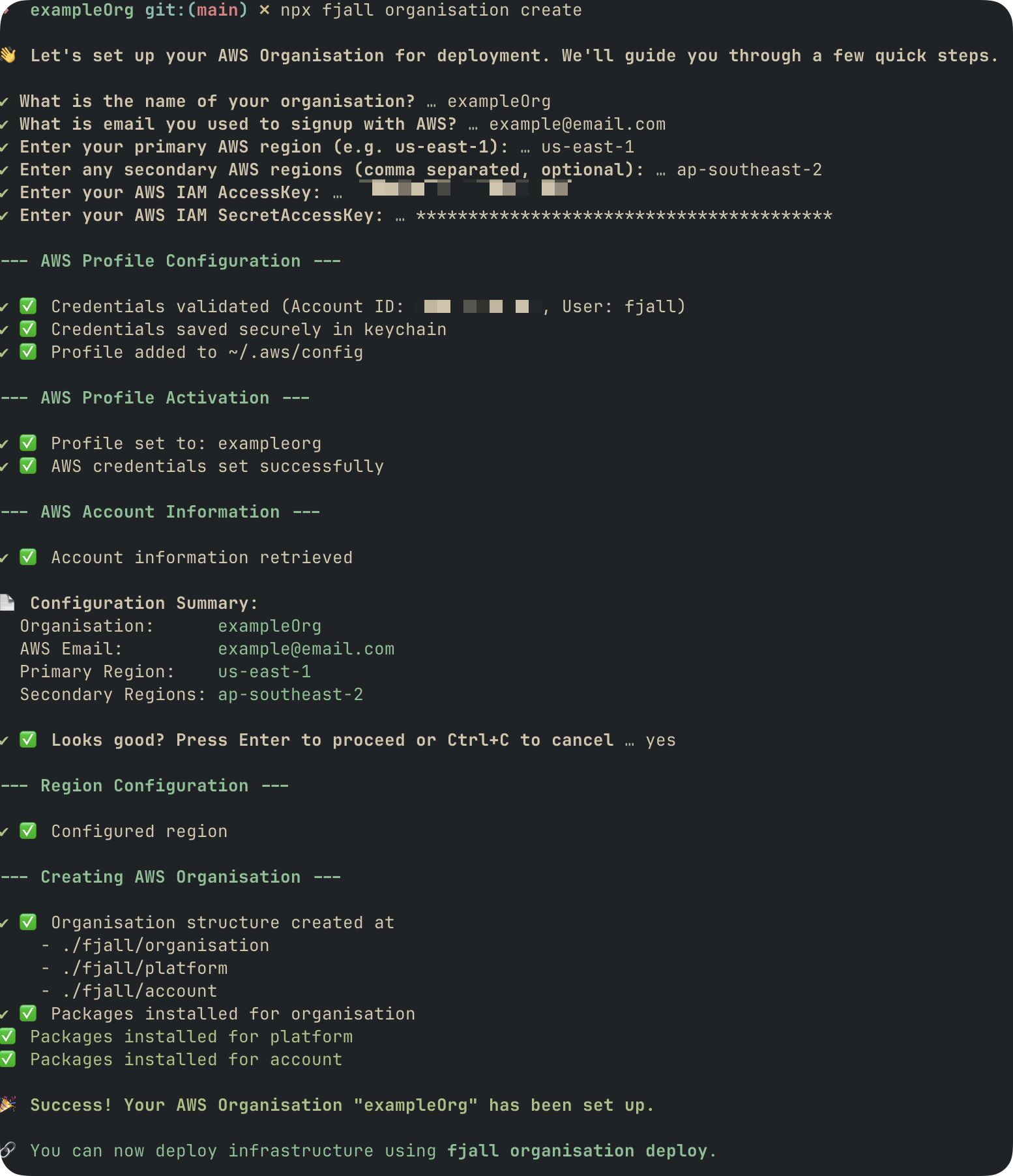 *Figure: Creating your organisation via the Fjall CLI.*
## 3. Review the infrastructure file
Fjall generates the organisation definition at `fjall/organisation/infrastructure.ts`.
By default, Fjall generates five accounts (Production, Staging, Development, Platform, and Business Continuity), each mapped to its organisational unit. Edit `infrastructure.ts` to change this layout before deploying.
*Figure: Creating your organisation via the Fjall CLI.*
## 3. Review the infrastructure file
Fjall generates the organisation definition at `fjall/organisation/infrastructure.ts`.
By default, Fjall generates five accounts (Production, Staging, Development, Platform, and Business Continuity), each mapped to its organisational unit. Edit `infrastructure.ts` to change this layout before deploying.
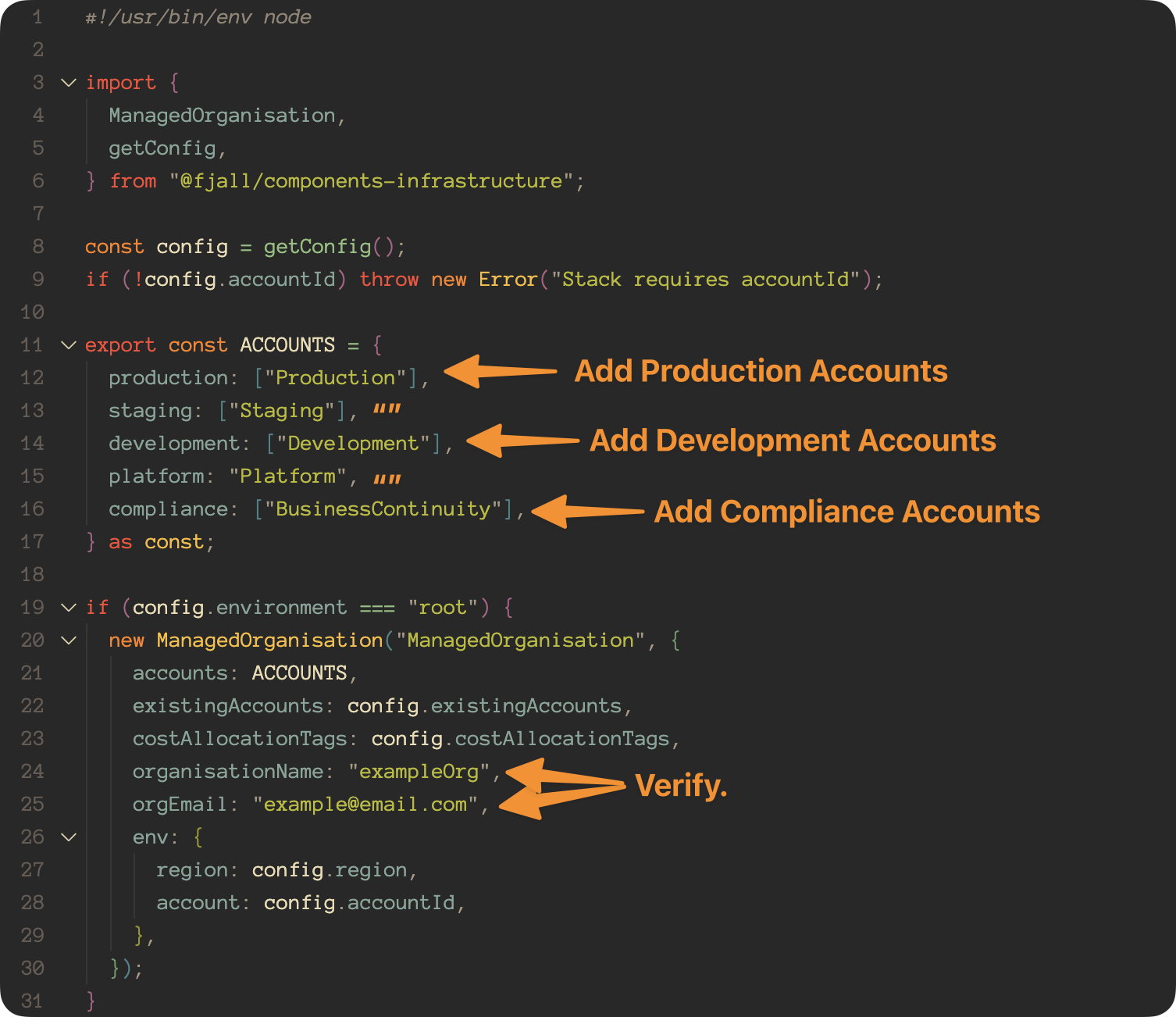 *Figure: The generated organisation infrastructure file.*
## 4. Deploy the organisation
```bash theme={null}
fjall deploy organisation
```
Fjall resolves the AWS account from your active deployment target. Profiles are derived automatically from your organisation config, so there is no manual profile step. Use `fjall target list` to see the derived targets and `fjall target set ` to choose the active one.
Deploying `organisation` cascades into the `platform` and `account` deploys by default. Pass `--no-cascade` to deploy the organisation alone.
### Success output
A successful deployment produces output similar to:
```bash theme={null}
--- Deployment Summary ---
🎉 Success! Your AWS organisation has been deployed.
🔗 You can now deploy your platform account with 'fjall deploy platform'!
/\
/ \ /\
/ _ _\ _\
Fjall
```
## Non-interactive mode
Pass options to skip the prompts:
```bash theme={null}
fjall create organisation \
-n myorg \
--email engineering@example.com \
--primary-region us-east-2 \
--secondary-regions us-west-2,eu-west-1 \
--non-interactive
```
| Option | Description |
| ---------------------------- | ------------------------------------------------------------- |
| `-n, --name` | Organisation name |
| `--email` | Admin email address for the organisation |
| `--primary-region` | Primary AWS region |
| `--secondary-regions` | Comma-separated secondary regions |
| `--disaster-recovery-region` | Disaster recovery region |
| `--security ` | Governance profile: `foundation`, `compliance`, or `hardened` |
| `--container ` | Monorepo container directory |
| `--non-interactive` | Skip interactive prompts |
The interactive governance labels map to `--security` values: Monitored = `foundation`, Regulated = `compliance`, Enforced = `hardened`. Essentials applies no preset.
The non-interactive flow has no `--account-name` option. The root account name follows the organisation name unless overridden in `infrastructure.ts`.
## Next Steps
See how Fjall derives AWS profiles and deployment targets from your organisation config
Establish OIDC trust between Fjall and your AWS account
Deploy your first application into the organisation
*Figure: The generated organisation infrastructure file.*
## 4. Deploy the organisation
```bash theme={null}
fjall deploy organisation
```
Fjall resolves the AWS account from your active deployment target. Profiles are derived automatically from your organisation config, so there is no manual profile step. Use `fjall target list` to see the derived targets and `fjall target set ` to choose the active one.
Deploying `organisation` cascades into the `platform` and `account` deploys by default. Pass `--no-cascade` to deploy the organisation alone.
### Success output
A successful deployment produces output similar to:
```bash theme={null}
--- Deployment Summary ---
🎉 Success! Your AWS organisation has been deployed.
🔗 You can now deploy your platform account with 'fjall deploy platform'!
/\
/ \ /\
/ _ _\ _\
Fjall
```
## Non-interactive mode
Pass options to skip the prompts:
```bash theme={null}
fjall create organisation \
-n myorg \
--email engineering@example.com \
--primary-region us-east-2 \
--secondary-regions us-west-2,eu-west-1 \
--non-interactive
```
| Option | Description |
| ---------------------------- | ------------------------------------------------------------- |
| `-n, --name` | Organisation name |
| `--email` | Admin email address for the organisation |
| `--primary-region` | Primary AWS region |
| `--secondary-regions` | Comma-separated secondary regions |
| `--disaster-recovery-region` | Disaster recovery region |
| `--security ` | Governance profile: `foundation`, `compliance`, or `hardened` |
| `--container ` | Monorepo container directory |
| `--non-interactive` | Skip interactive prompts |
The interactive governance labels map to `--security` values: Monitored = `foundation`, Regulated = `compliance`, Enforced = `hardened`. Essentials applies no preset.
The non-interactive flow has no `--account-name` option. The root account name follows the organisation name unless overridden in `infrastructure.ts`.
## Next Steps
See how Fjall derives AWS profiles and deployment targets from your organisation config
Establish OIDC trust between Fjall and your AWS account
Deploy your first application into the organisation