> ## Documentation Index
> Fetch the complete documentation index at: https://docs.fjall.io/llms.txt
> Use this file to discover all available pages before exploring further.
# Users and Permissions
> Declare AWS IAM Identity Center users, groups, permission sets, and memberships in code, and apply them with an organisation deploy.
Complete these first:
* [**Deploy Organisation**](/deployment/deploy-organisation)
***
## Introduction
User access in a Fjall organisation is **declared in code**. The
`identityCentre` block of `fjall/organisation/infrastructure.ts` describes your
users, groups, permission sets, and memberships; `fjall deploy organisation`
makes AWS IAM Identity Center match the declaration. There are no imperative
user commands that write to AWS behind your back — every access change is a
reviewable diff in your infrastructure file.
```typescript theme={null}
const organisation = OrganisationFactory.build("Organisation", {
type: "organisation",
accounts: ACCOUNTS,
organisationName: "acme",
orgEmail: "aws@acme.com",
identityCentre: {
source: "external",
memberships: {
AdministratorAccess: ["sarah@acme.com", "lee@acme.com"],
ReadOnlyAccess: ["contractor@agency.com"],
},
},
});
```
You can edit the block by hand, or use the [`fjall user`](/cli/user) verbs —
safe file editors that produce the same diff:
```bash theme={null}
fjall user add sarah@acme.com --group AdministratorAccess
fjall deploy organisation
```
***
## Choosing an identity source
The `source` field declares who owns user objects. Pick the row that matches
your organisation:
| Mode | When to use it | User objects come from |
| ----------------- | --------------------------------------------------------------------------------- | ------------------------------------------- |
| `external` | You have Google Workspace, Okta, or Microsoft Entra and want SSO (recommended) | Your IdP, auto-provisioned via SCIM |
| `fjall-managed` | No external IdP — Fjall creates users in the native Identity Center directory | Declared `users` entries in the config |
| `external-manual` | SAML sign-in without SCIM — users are mirrored manually to match your IdP NameIDs | Declared `users` entries, matched by NameID |
### external (IdP-owned, recommended)
Your IdP owns user creation and deletion; the config declares only group
memberships. Fjall resolves each email against the identity store at deploy
time.
```typescript theme={null}
identityCentre: {
source: "external",
memberships: {
AdministratorAccess: ["sarah@acme.com"]
}
}
```
For Google Workspace, the guided runbook connects SAML + SCIM end to end:
```bash theme={null}
fjall org identity setup-google --wait
```
If an email hasn't synced from your IdP yet, the deploy fails with a
prescriptive `IDC_*` error — see the
[error ladder in the CLI reference](/cli/user#setting-up-an-identity-source).
When a user is deleted and recreated in your IdP, run `fjall user rebind` and
redeploy to re-bind memberships to the new identity.
### fjall-managed
Fjall creates and manages the user objects. Declare each user with their
memberships:
```typescript theme={null}
identityCentre: {
source: "fjall-managed",
users: {
"sarah@acme.com": { givenName: "Sarah", familyName: "Chen" },
"contractor@agency.com": {
givenName: "Alex",
familyName: "Reid",
expires: "2026-09-30T00:00:00Z"
}
},
memberships: {
AdministratorAccess: ["sarah@acme.com"],
ReadOnlyAccess: ["contractor@agency.com"]
}
}
```
Every membership email must have a matching `users` entry — the deploy fails
at synth time otherwise. Users receive an AWS invitation email and set up MFA
on first sign-in.
### external-manual
SAML without SCIM: AWS requires user objects whose usernames mirror your IdP
NameIDs. Declare them like `fjall-managed` users; memberships for emails not
declared in `users` fall back to a store lookup.
***
## Groups, permission sets, and memberships
Every organisation deploys with three default groups:
| Group | Description | AWS Permissions |
| --------------------- | --------------------------- | ---------------------- |
| `AdministratorAccess` | Full administrative access | All AWS services |
| `ReadOnlyAccess` | View-only access | Read all resources |
| `Billing` | Billing and cost management | Cost Explorer, Budgets |
Beyond the defaults, the config declares custom groups and permission sets:
```typescript theme={null}
identityCentre: {
source: "external",
groups: {
DataEng: { description: "Data engineering team" }
},
permissionSets: {
DataEng: {
managedPolicies: ["arn:aws:iam::aws:policy/AmazonAthenaFullAccess"],
sessionDuration: "PT8H",
accounts: ["Production", "Staging"],
groups: ["DataEng"]
}
},
memberships: {
DataEng: ["lee@acme.com"]
}
}
```
Key permission-set fields:
* `accounts` — which ACCOUNTS-map names the set is assigned to (default: all
workload accounts). `includeManagementAccount: true` is the only route to
the management account.
* `sessionDuration` — ISO 8601, between `PT1H` and `PT12H`.
* `managedPolicies` / `customerManagedPolicies` / `inlinePolicy` /
`permissionsBoundary` — the policy surface, mirroring AWS permission sets.
* A permission set named after a default group merges over that default's
spec; `defaultPermissionSets: false` suppresses the three built-ins.
Everything is validated at synth time — unknown group references,
case-variant duplicates, past-expiry members, and malformed session durations
fail the deploy before any CloudFormation runs.
***
## Day-to-day access changes
Use the CLI verbs to edit the declaration, then deploy:
```bash theme={null}
# Grant access
fjall user add lee@acme.com --group DataEng
fjall deploy organisation
# Time-boxed contractor
fjall user add contractor@agency.com --group ReadOnlyAccess --expires 2026-09-30T00:00:00Z
fjall deploy organisation
# Remove one membership
fjall user remove lee@acme.com --group DataEng
# Remove a person entirely
fjall user remove leaver@acme.com
fjall deploy organisation
```
After each successful write the CLI offers to run the organisation deploy for
you — identity-only deploys typically take 2–5 minutes.
Audit any time with:
```bash theme={null}
fjall user list # the declaration (pure file read)
fjall user list --live # + drift columns from the live identity store
```
***
## Verify provisioned users (external mode)
After connecting an IdP:
1. Log in to the [AWS Console](https://console.aws.amazon.com/)
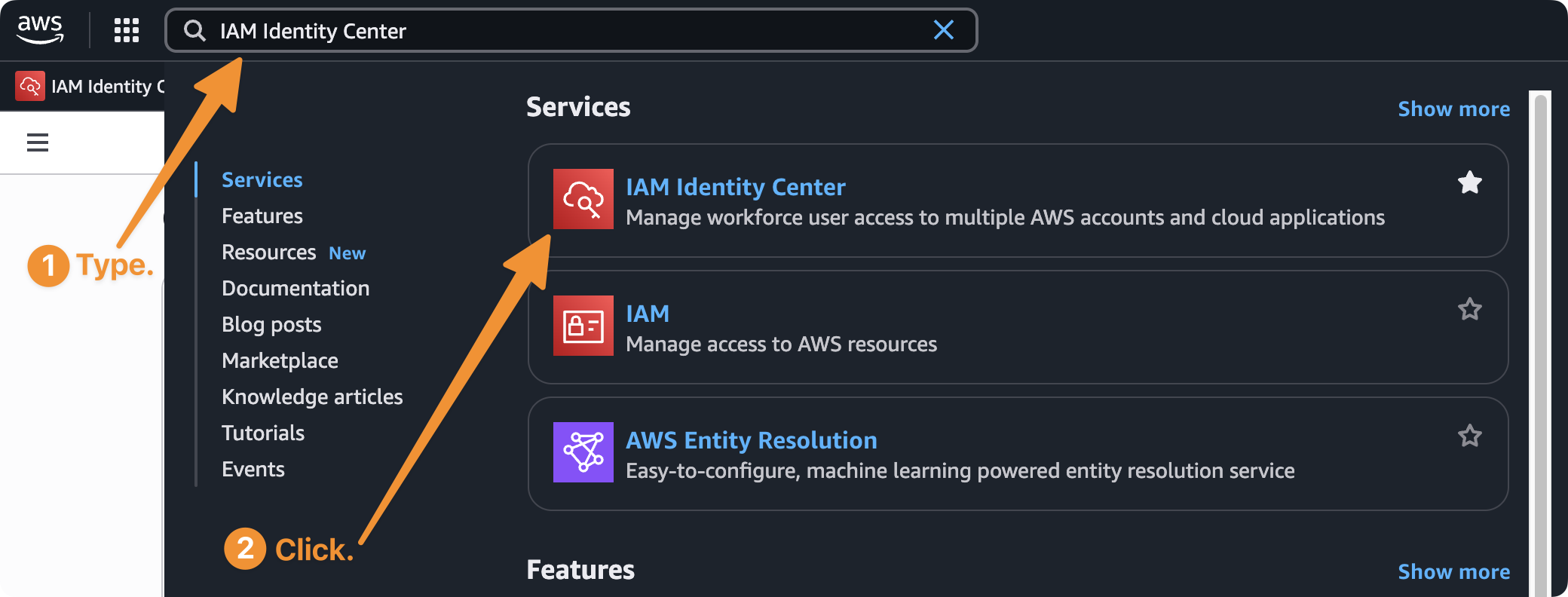
2. In the top-left search bar, type **IAM Identity Center** and click the first result
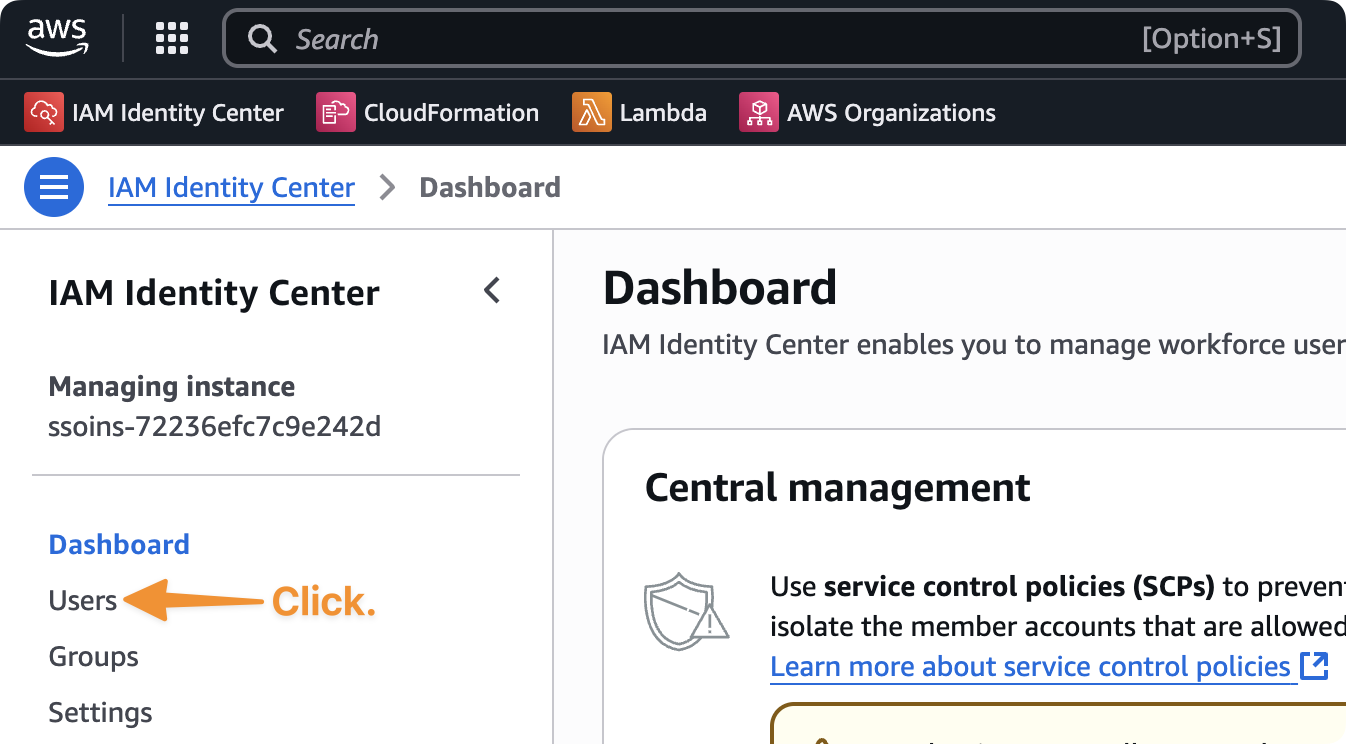
 3. Navigate to **Users** in the left navigation pane
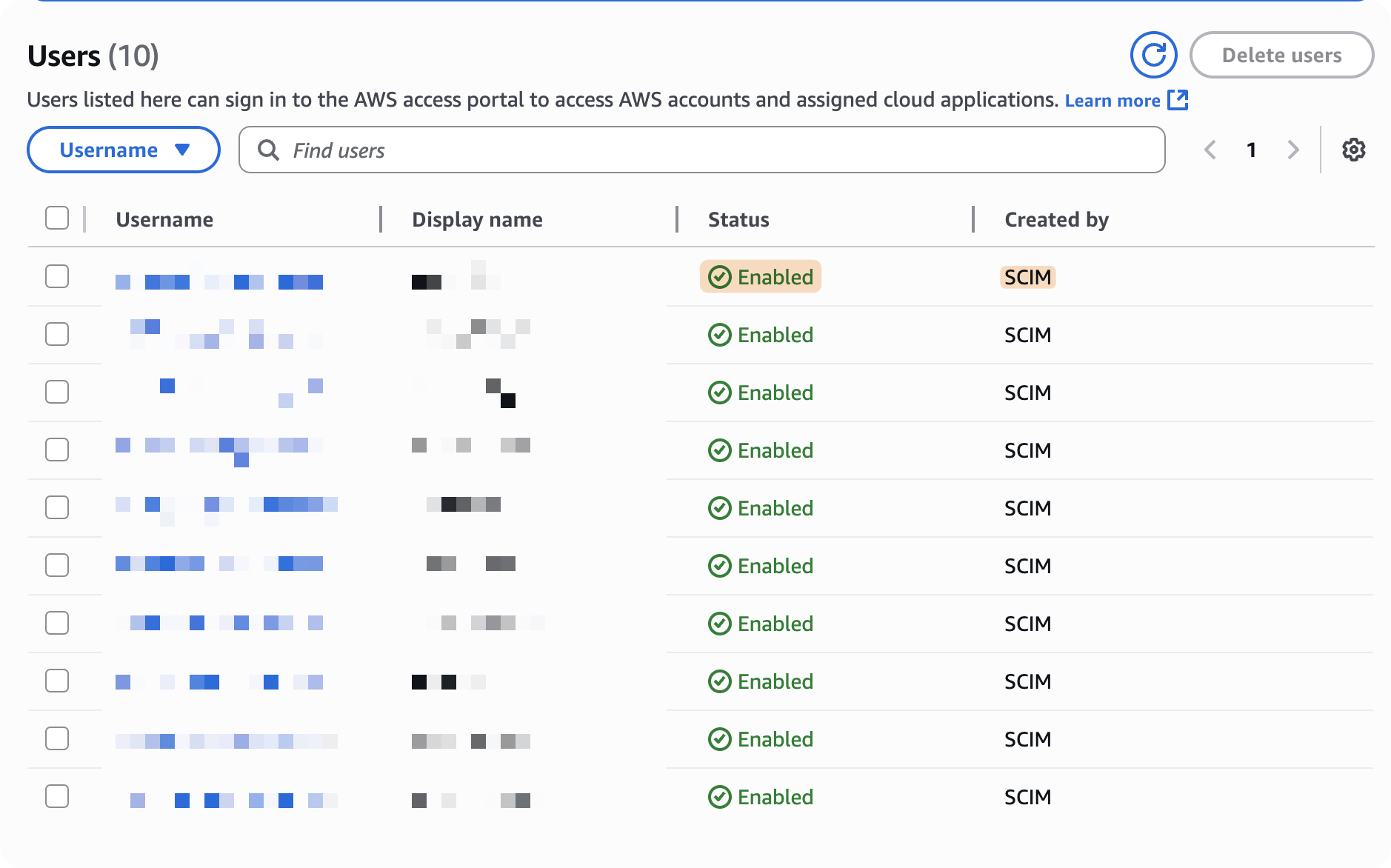
 4. You should see your users listed
* Check that **Status** is *Enabled*
* Check that **Created by** shows *SCIM*
4. You should see your users listed
* Check that **Status** is *Enabled*
* Check that **Created by** shows *SCIM*
 Or from the terminal: `fjall user list --live` shows `in-store` /
`not-synced` per declared email.
***
## Next Steps
Full `fjall user` verb reference and error ladder.
See how profiles map to AWS accounts.
Deploy your AWS organisation.
Issue scoped API tokens for CI/CD and automation.
Or from the terminal: `fjall user list --live` shows `in-store` /
`not-synced` per declared email.
***
## Next Steps
Full `fjall user` verb reference and error ladder.
See how profiles map to AWS accounts.
Deploy your AWS organisation.
Issue scoped API tokens for CI/CD and automation.