> ## Documentation Index
> Fetch the complete documentation index at: https://docs.fjall.io/llms.txt
> Use this file to discover all available pages before exploring further.
# Configure MFA
> Secure your AWS root account with multi-factor authentication before connecting it to Fjall.
Enable multi-factor authentication on your AWS root account. This protects the account that controls all your infrastructure before you connect it to Fjall.
## Prerequisites
* An AWS root account (the email used to create the account).
## Steps
1. **Sign in to your AWS Root Account**\
[Open the AWS Console](https://aws.amazon.com/console/) and click on **Sign in**.
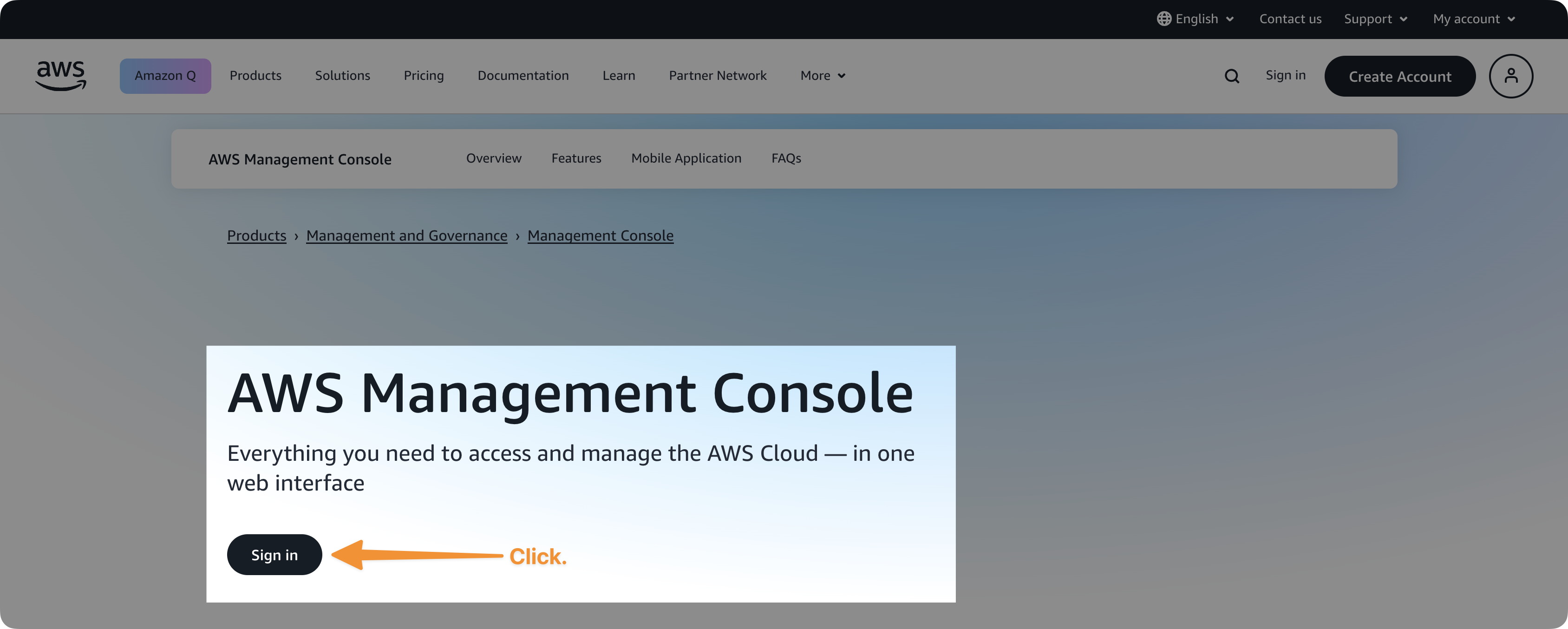 *Figure 1: AWS Console login page.*
2. **Enter your root user email address**\
This should be the same email used to create the AWS account.
*Figure 1: AWS Console login page.*
2. **Enter your root user email address**\
This should be the same email used to create the AWS account.
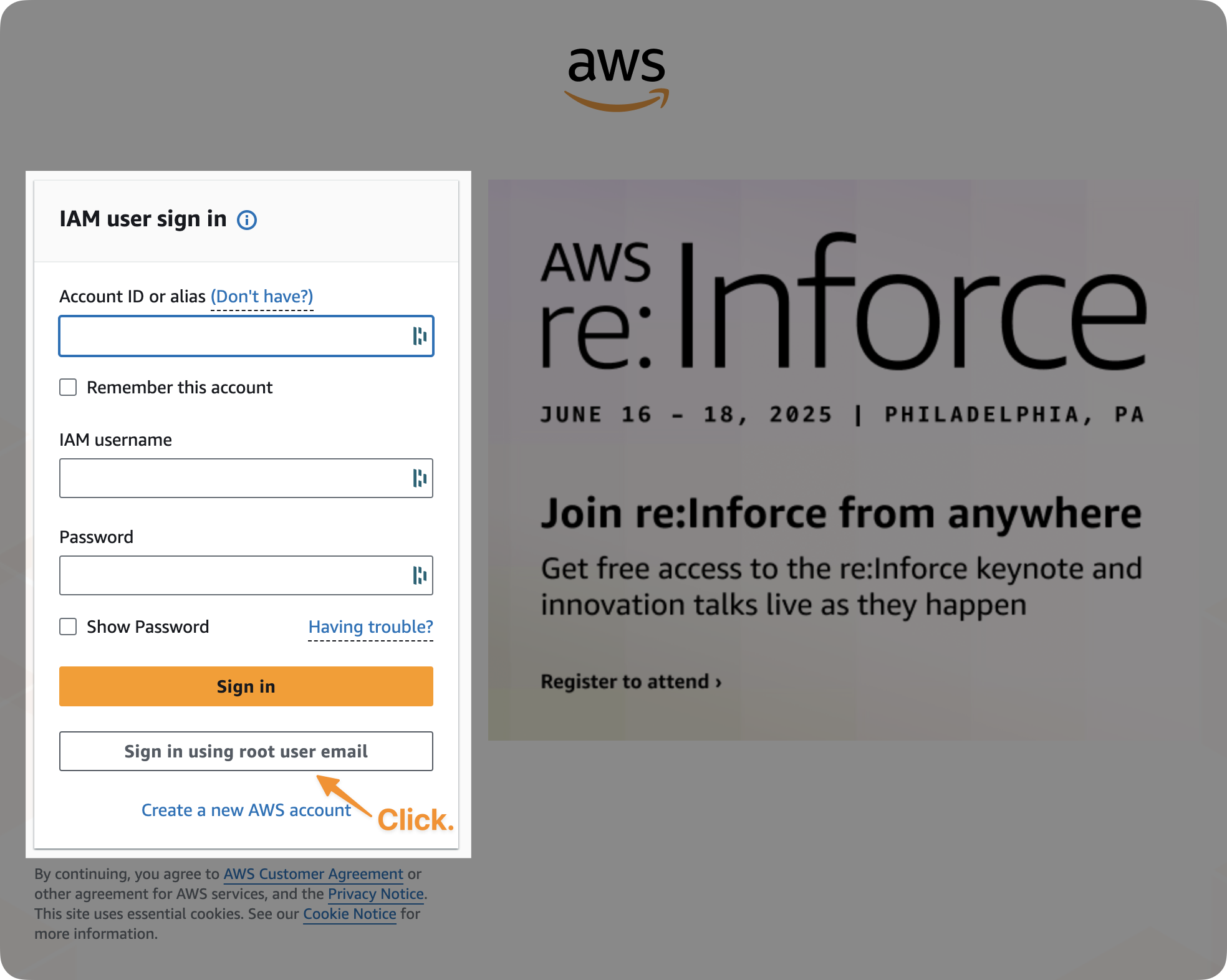 *Figure 2: Root account email entry.*
3. **Go to your Security Credentials**\
Once logged in, click your account name (furthest top right) → **Security Credentials**.
*Figure 2: Root account email entry.*
3. **Go to your Security Credentials**\
Once logged in, click your account name (furthest top right) → **Security Credentials**.
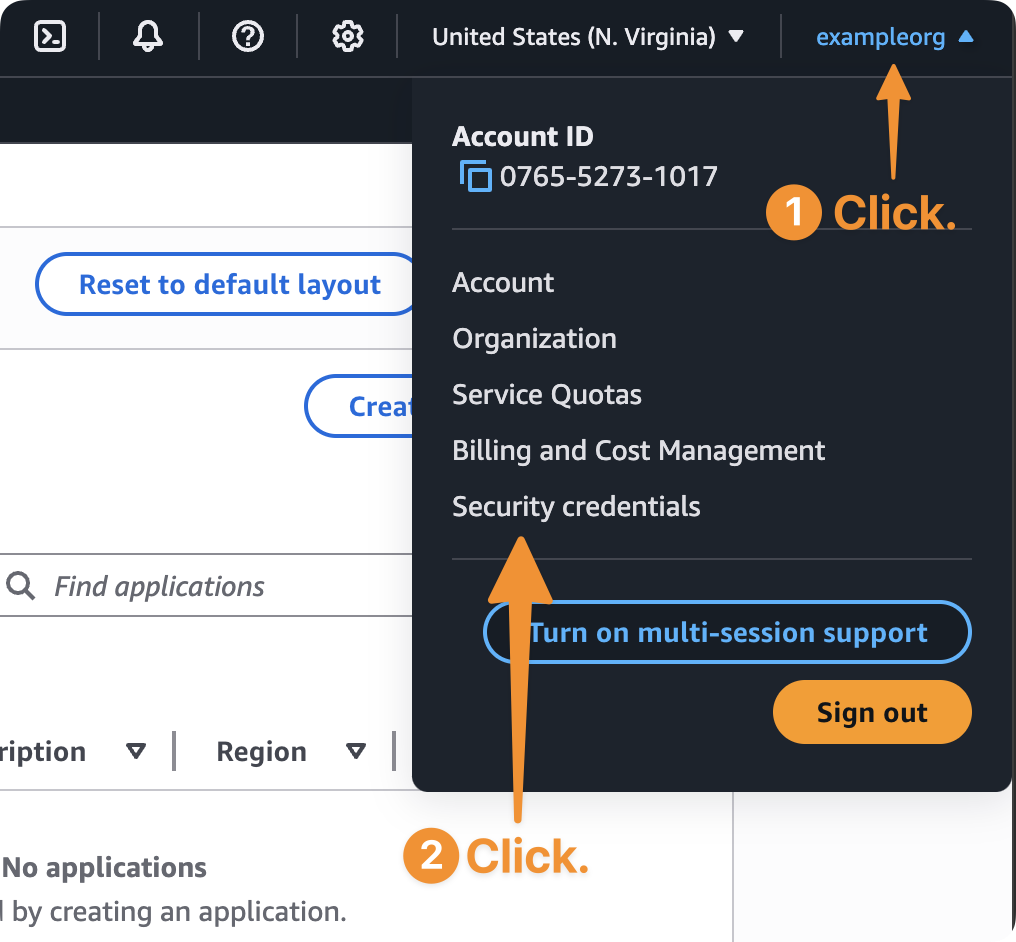 *Figure 3: Navigating to Security Credentials.*
4. **Assign MFA Device**\
In the **Multi-factor authentication (MFA)** section, click **Assign MFA device**.\
Choose your preferred method (Authenticator App, FIDO2 key, etc.), and follow the on-screen prompts.
*Figure 3: Navigating to Security Credentials.*
4. **Assign MFA Device**\
In the **Multi-factor authentication (MFA)** section, click **Assign MFA device**.\
Choose your preferred method (Authenticator App, FIDO2 key, etc.), and follow the on-screen prompts.
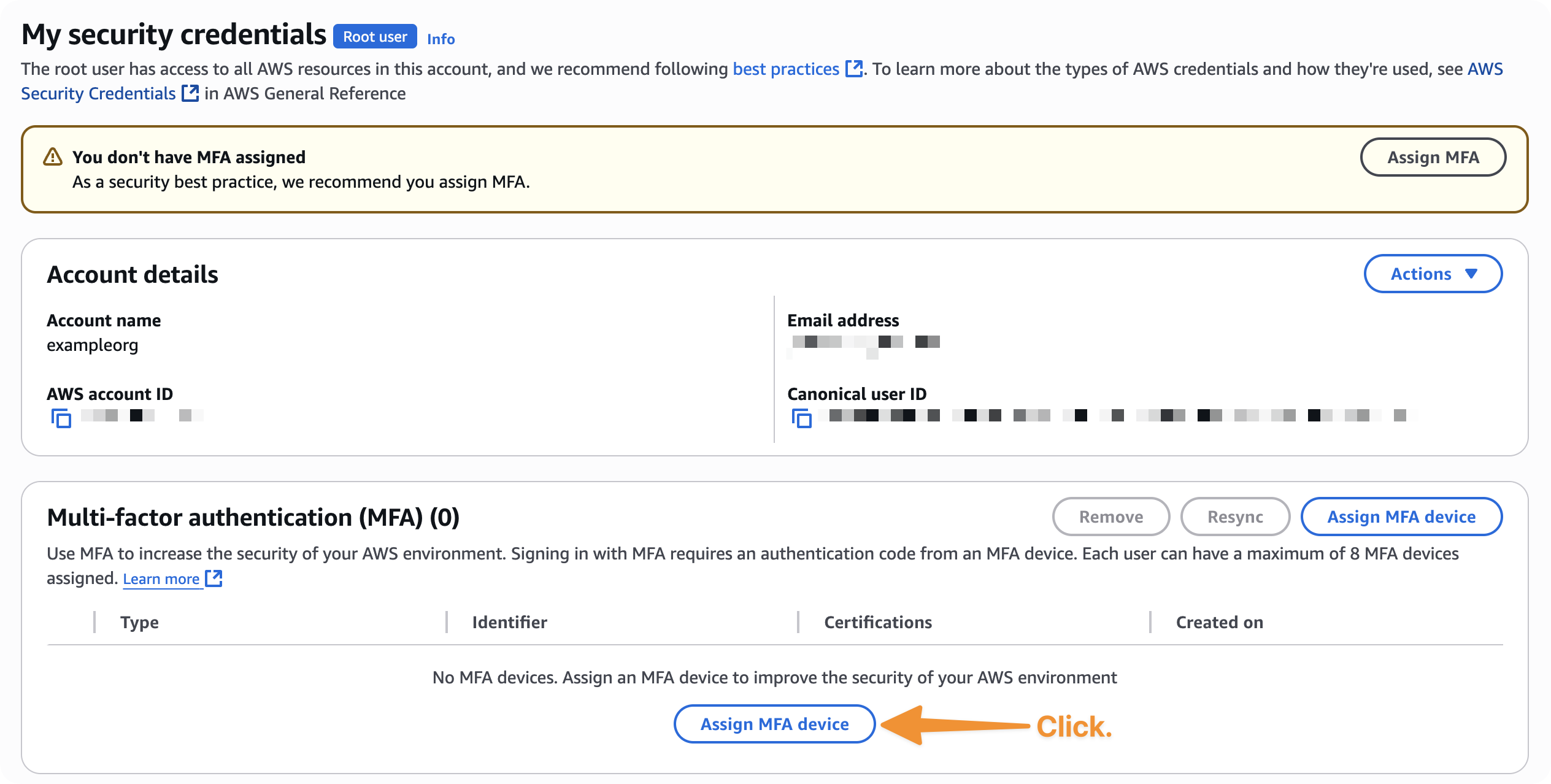 *Figure 4: Assigning an MFA device.*
## Next Steps
Set up centralised access for your AWS organisation
Turn on cost monitoring for your AWS account
*Figure 4: Assigning an MFA device.*
## Next Steps
Set up centralised access for your AWS organisation
Turn on cost monitoring for your AWS account