> ## Documentation Index
> Fetch the complete documentation index at: https://docs.fjall.io/llms.txt
> Use this file to discover all available pages before exploring further.
# Enable Cost Explorer
> Enable AWS Cost Explorer to track infrastructure spend, view cost breakdowns, and monitor budgets from the Fjall dashboard.
Enable AWS Cost Explorer so Fjall can track infrastructure spend, break down costs by resource, and monitor budgets from the dashboard.
## Prerequisites
* An AWS account with billing access.
* Permission to view AWS Cost Management (the account owner or an IAM user with `aws-portal:*Billing` / Cost Explorer access).
## Steps
1. Open the [Cost Explorer console](https://console.aws.amazon.com/costmanagement/home#/cost-explorer).
2. If this is your first visit, AWS may ask you to configure billing preferences and validate your account.
3. When prompted, click **Complete your AWS registration** and continue.
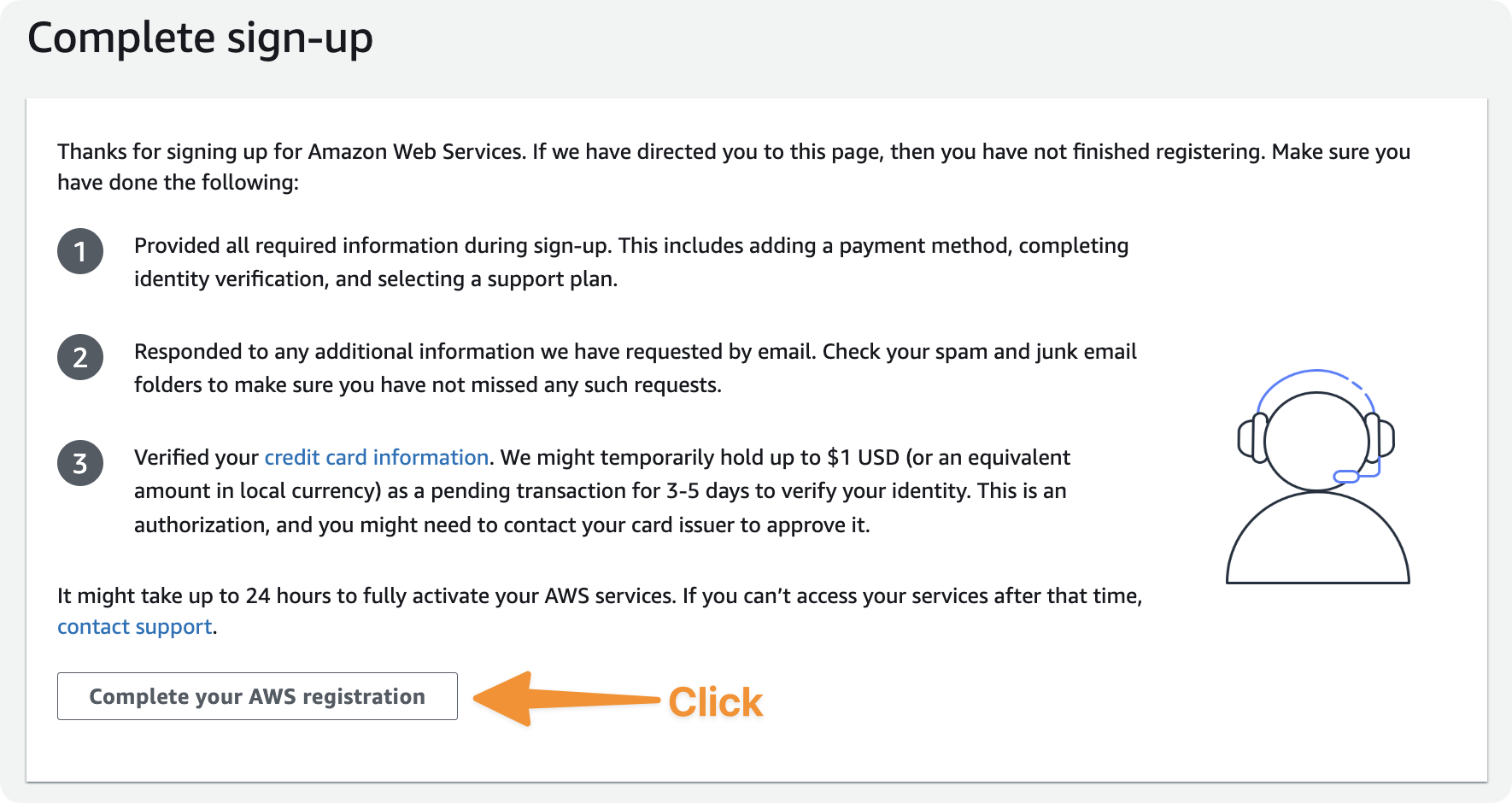 *Figure: Complete your AWS registration to activate Cost Explorer.*
## What happens next
Cost data takes up to 24 hours to populate after you enable Cost Explorer. Until then, the console shows a pending state.
*Figure: Complete your AWS registration to activate Cost Explorer.*
## What happens next
Cost data takes up to 24 hours to populate after you enable Cost Explorer. Until then, the console shows a pending state.
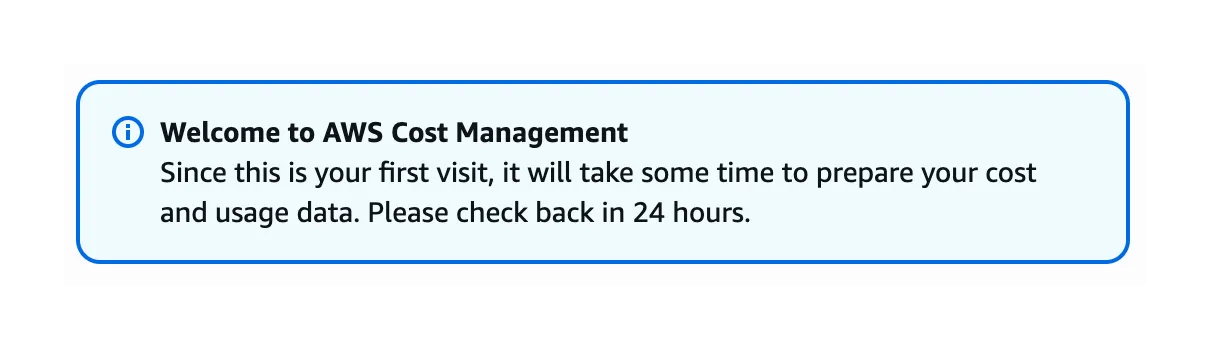 *Figure: Cost Explorer is enabled and preparing your first cost report.*
A pending message is expected on first activation. Fjall continues your setup even while AWS prepares the data, so you can proceed to the next step right away.
## Next Steps
Set up centralised user access management.
Link your AWS account to Fjall with a single command.
*Figure: Cost Explorer is enabled and preparing your first cost report.*
A pending message is expected on first activation. Fjall continues your setup even while AWS prepares the data, so you can proceed to the next step right away.
## Next Steps
Set up centralised user access management.
Link your AWS account to Fjall with a single command.