
fjall connect establishes OIDC trust with AWS. fjall org deploy is the first command that changes anything in AWS.
Prerequisites
- Install the Fjall CLI (requires Node 22 or later)
- Sign in with
fjall login. Credentials land in~/.fjall/auth.json(or$FJALL_CONFIG_DIR/auth.json) - A Pro plan or above. Organisation management is gated on it, and the CLI stops with “Organisation management requires a Pro plan.” otherwise
1. Create the organisation
Run this at the root of your project:2. Answer the prompts
The interactive flow asks for, in order:
A review list follows, then a final “Create organisation with these settings?” confirmation.
Use a monitored inbox for the account email. With centralised root access enabled (the default), member accounts hold no root credentials, and AWS root password recovery (the “Allow password recovery” privileged task) delivers its reset link to this address.
Governance profiles
Profiles above Essentials are checked against your plan before any file is written.
The profile also selects the content of the deploy-role permissions boundary that every member account’s deploy role is capped with. That cap is on regardless of the profile you choose: Essentials writes no
securityTier, and a scaffold with no tier still renders the boundary at hardened. The profile decides which ceiling the deploy role gets, and which security services the account scaffold enables — never whether there is a ceiling at all.
What happens after you confirm
The CLI runs two steps, “Generating organisation structure” and “Installing dependencies”. It scaffoldsfjall/organisation, fjall/platform and fjall/account, runs npm install in each, and records the organisation id in fjall-config.json so the project is bound to one organisation.
An npm install failure is not fatal. It surfaces as a warning with a “Run ‘npm install’ in each fjall/ subdirectory” follow-up.
Creating an organisation deploys nothing to AWS and opens no browser. The completion screen points at
fjall connect, which is where OIDC trust is established.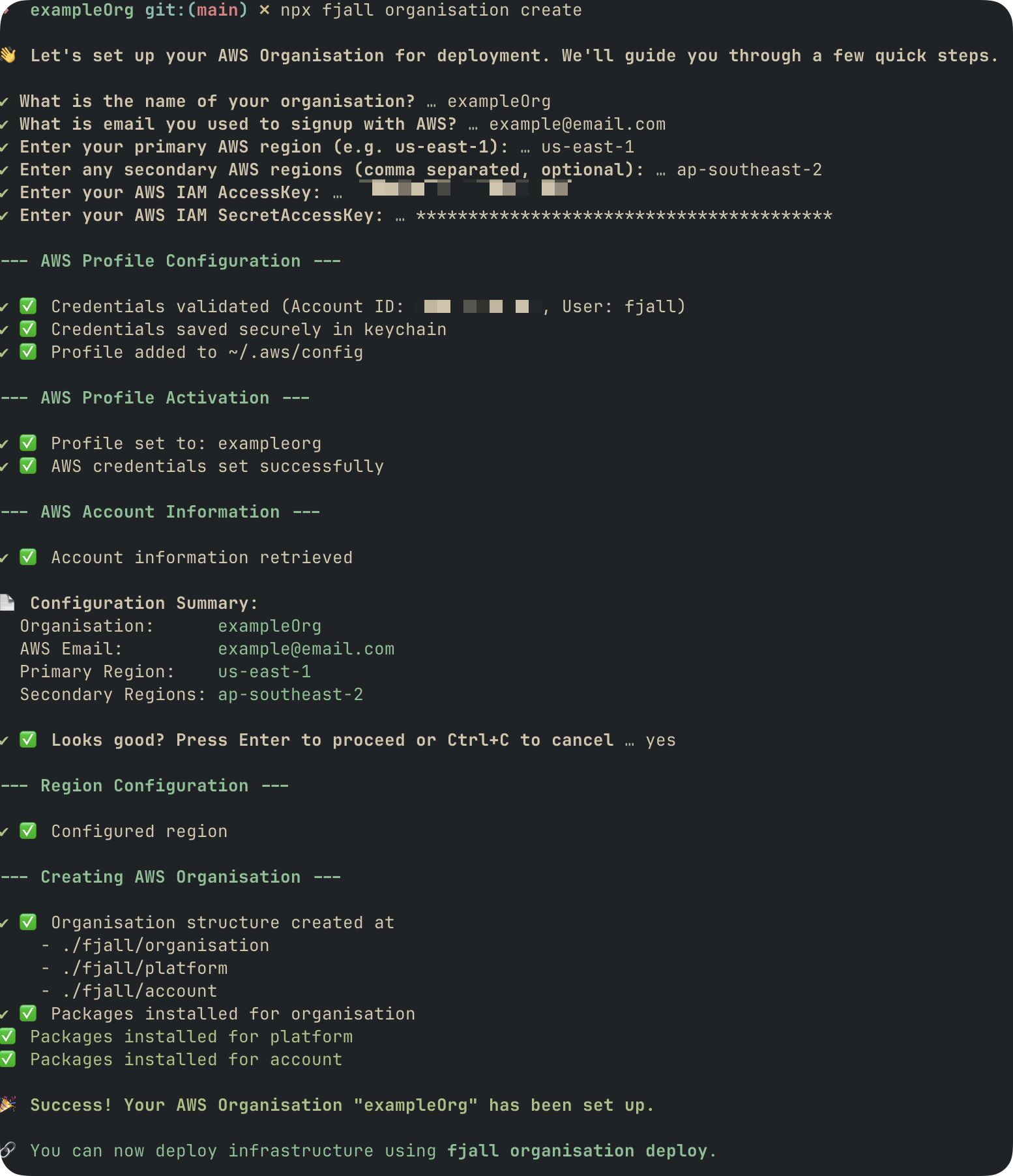
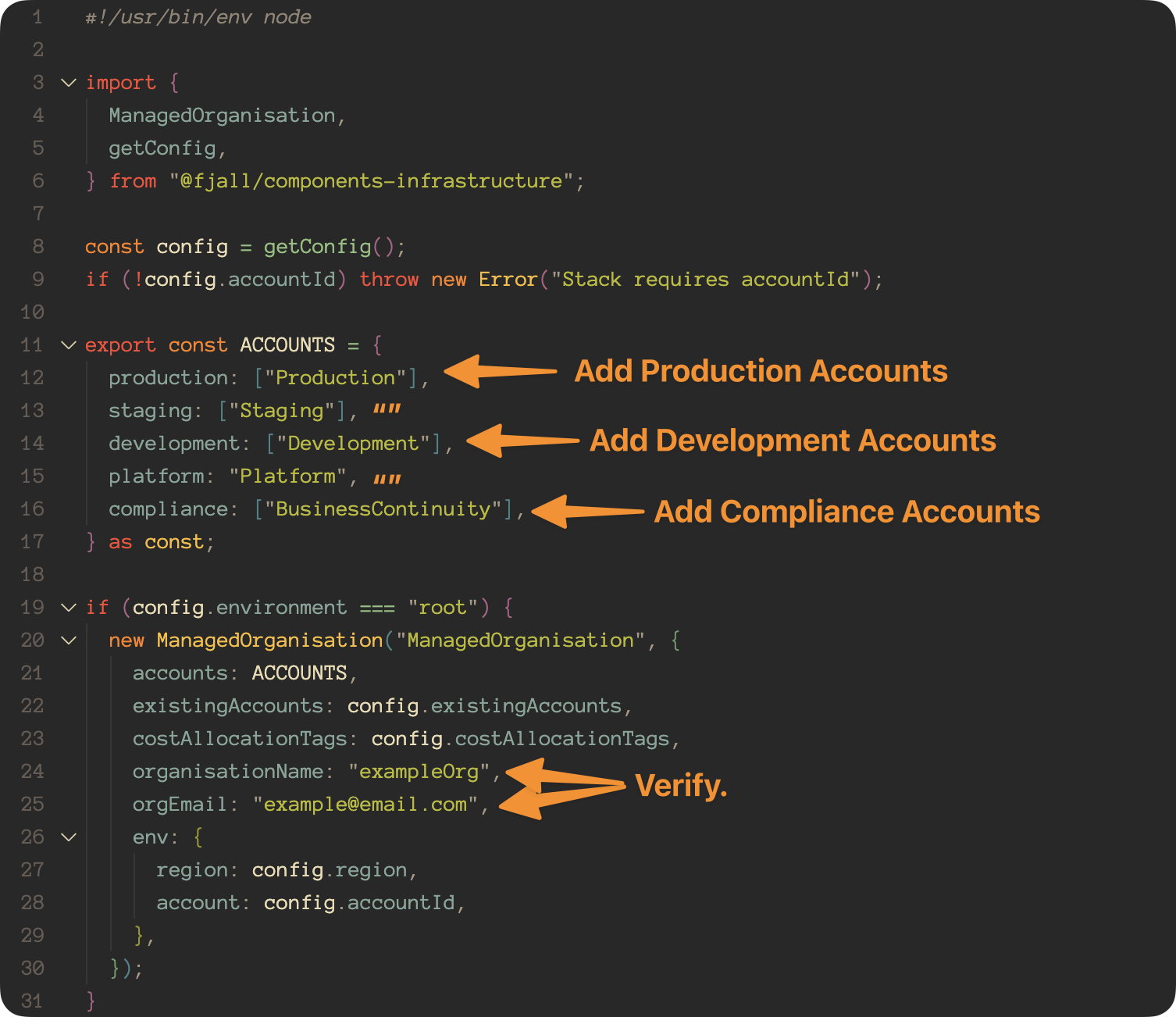
3. Review the infrastructure file
Fjall generates the organisation definition atfjall/organisation/infrastructure.ts.
The default layout is five accounts, each mapped to its organisational unit:
Edit
infrastructure.ts to change this layout before deploying.
4. Connect the management account
5. Deploy the organisation
fjall deploy takes application names only, and fjall deploy organisation fails with a teaching error before it authenticates.
Fjall resolves the AWS account itself. Profiles are derived in memory from your organisation config, so there is no manual profile step and nothing is written to ~/.aws/config. See Understanding Profiles.
The cascade
By defaultfjall org deploy deploys the organisation root stack, then cascades through platform, domains, then accounts. Pass --no-cascade to deploy the root alone.
The run shows these steps:
Domains deploy between platform and accounts. That phase has no step of its own.
“Configuring organisation” opens a live sub-task panel covering organisation creation, policy types, centralised root access, RAM sharing, IPAM delegated admin, account creation, organisational units, cost allocation tags, IAM Identity Center, delegated security services and domains. The accounts phase opens a tabbed panel with one tab per account and region, switched with the number keys (
1-9, then a-z for further tabs), Tab / Shift+Tab to cycle, and 0 for the overview.
There is no diff-review or “deploy these changes?” confirmation on a tier deploy. The domains-phase CAA check is an automatic fail-closed preflight, not a prompt.
When the deploy boundary reaches each account
Two roles per account and region carry the boundary:FjallDeploy<orgId>, and the CDK execution role that Fjall’s bootstrap creates. The second can only be capped once FjallDeployBoundary<orgId> already exists in the account, so whether an account converges in one pass or two depends on what created the policy first.
Regions the cascade did not touch converge on their own schedule: the first deploy into a new region caps that region’s execution role. Nothing is retroactive and nothing is silent — each bootstrap logs whether it applied the boundary, and why not when it did not.
The management account is capped from the moment you connect it, because its deploy role comes from the quick-create stack rather than from the cascade. The flip side is that the cascade never re-renders that stack, so the management account cannot heal itself: an account connected before the boundary shipped carries no policy until its connector stack is updated, which here means re-running
fjall connect --force.
Deploy Account has the per-account detail and the get-role commands for checking where each role stands.
Options
--target is registered on the leaf but refused for organisation deploys. Organisation infrastructure always deploys to the management account.
Partial failure
The cascade runs to completion, then the deploy fails as a whole.- A failed platform skips the member fan-out with “Skipping account cascade — platform deployment failed; platform is a prerequisite for member accounts.”
- A withheld domain record takeover halts before members and exits 4. Cure it with
--remediate <name>=<verb>or--allow-replace <name>. - Member failures are recorded per account and region, and the run reports “Organisation root deployed, but the cascade failed for N target(s):” with a per-target list.
Success output
An interactive run finishes on a summary screen: the titleDeploying organisation: organisation, a tick-list of the steps above, and a Next Steps block. After a full cascade:
--no-cascade it points at the platform tier instead:
Create without prompts
Pass options to skip the interactive flow:
The interactive governance labels map to
--security values: Monitored is foundation, Regulated is compliance, Enforced is hardened. Essentials applies no preset.
Next Steps
Connect AWS
Establish OIDC trust between Fjall and your AWS management account
Deploy the Platform
Deploy the platform tier on its own after a
--no-cascade organisation deployUnderstanding Profiles
See how Fjall derives AWS profiles and deployment targets from your organisation config
Deploy an Application
Deploy your first application into the organisation